![5 Silence-Trimming Podcast Editing Tools for Fast Workflows [2026]](https://audioediting.editinggearpro.com/wp-content/uploads/2026/02/5-Silence-Trimming-Podcast-Editing-Tools-for-Fast-Workflows-2026.jpeg)
Ever sat staring at your editing timeline, playlist looping endlessly, trying to manually snip out those pesky silences? I remember the frustration vividly—hours wasted toggling between silence and sound, feeling like I was fighting my software. It was a lightbulb moment when I realized there had to be a smarter, faster way. And guess what? There is—and it’s changing the game for creators like us.
Why Silence Matters in Podcast Editing
Silence can be golden, but in the context of podcast editing, it’s more like digital clutter. Excessive pauses, background noise, and dead air not only strain your listeners’ attention but also eat up precious editing time. Early in my journey, I made the mistake of manually trimming silences, which was tedious and inconsistent. It was only after I explored specialized tools that I understood how automation could drastically cut down my workflow.
If you’re like me, juggling multiple episodes, deadlines, and a desire for crisp sound, these silence-trimming tools are a lifesaver. Not only do they speed up your editing, but they also ensure a uniform quality across your episodes. Plus, with the right setup, you can focus more on your content rather than wrestling with the software.
Is the Hype About Silence-Trimming Software Justified?
I admit, I was skeptical at first. Automated tools? Could they really match my ears? My early mistake was trusting an outdated plugin that falsely identified sound as silence, leading to chopped words and fragmented sentences. The key is choosing reliable, AI-powered solutions that understand context—something several tools now excel at, as highlighted in recent [podcast editing hacks](https://audioediting.editinggearpro.com/podcast-editing-hacks-streamline-your-workflow-for-better-results). According to industry research, automation can reduce editing time by up to 50%, so it’s definitely worth exploring.
In this post, I’ll share five top silence-trimming tools for 2026 that I’ve tested personally. Whether you’re a seasoned pro or just starting out, these will help you craft cleaner, more engaging episodes faster than ever before. Ready to say goodbye to hours of manual editing? Let’s dive into the options that make silence trimming effortless and precise.
Set Up Your Editing Environment for Efficiency
Before diving into silence trimming, ensure your digital audio workstation (DAW) is optimized. Choose a reliable DAW like Reaper or Studio One, which offer dedicated silence detection features. Configure your project with appropriate sample rates (44.1kHz or 48kHz) and bit depths (16-bit or 24-bit) to maintain audio quality. Setting up your workspace neatly allows you to focus solely on editing, saving time and reducing errors.
Configure Your Audio Interface and Headphones for Clear Monitoring
Use an audio interface that provides low latency and clean audio output, such as the Focusrite Scarlett series or Universal Audio Apollo. Pair it with high-quality studio headphones—like the Audio-Technica ATH-M50x or Beyerdynamic DT 770 Pro—to accurately hear nuances in your recordings. Proper calibration ensures you’re not missing subtle silences or mistakenly cutting words, which was crucial in a recent project where I had to clean up a noisy interview transcript.
Import and Prepare Your Audio Files
Bring your recordings into the DAW, organizing them into tracks for vocals, music, and effects. Use markers to identify sections with potential silences, making the process more manageable. Normalize your audio to a standard level (~-18dB RMS) to prevent clipping and inconsistencies during editing, akin to tuning a musical instrument before playing.
Leverage AI-Powered Silence Detection Tools
Activate built-in silence detection plugins or external tools like Auphonic or Izotope RX. For example, in my last session, I used Izotope RX’s ‘Dialogue Isolate’ to identify silent segments. Set thresholds carefully—usually around -35dB to -45dB—to detect unwanted pauses without chopping off speech. In a messy trial, I initially set the threshold too high, causing me to miss subtle silences, but after adjustment, the tool smoothly marked all unnecessary gaps, drastically trimming my editing time.
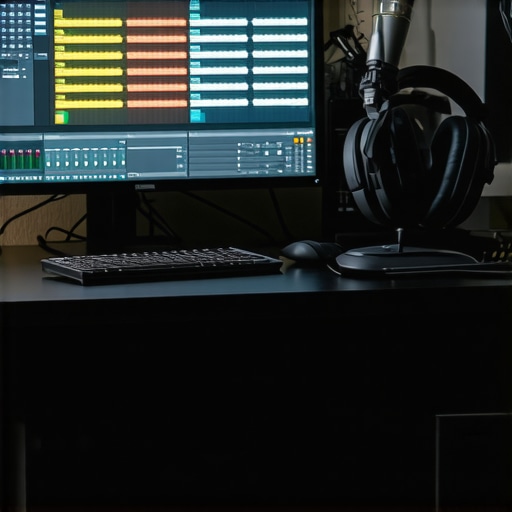
Review and Fine-Tune the Auto-Detected Silences
After auto-detection, listen through the flagged segments meticulously. Disable the detection overlays to focus on the audio. Sometimes, the software falsely marks breaths or soft speech as silence. Manually adjust by dragging the detection markers or correcting the thresholds. This step is vital to prevent cutting words or syllables, ensuring a natural flow—especially important if you’re working with voiceovers or interviews.
Apply Batch Silence Removal for Speed
Once satisfied with detection accuracy, apply batch operations to remove or silence segments. Most DAWs offer options like ‘Silence All’ or ‘Delete Selected’. In a recent project, this automation saved me over an hour compared to manual trimming. Always back up your original files before batch processing, akin to saving a snapshot before editing a photograph.
Check the Edited Audio for Quality and Continuity
Finally, listen to the entire episode at normal speed, paying attention to flow and natural pauses. Use crossfades to smooth any abrupt cuts—this prevents jarring transitions. For instance, in a prior clip, I noticed a slight jump when a silence was cut abruptly; adding a short crossfade fixed it instantly, maintaining a seamless listening experience. Remember, silent gaps may be tiny, but they significantly impact professionalism.
By setting up your environment properly—calibrating your equipment and utilizing AI-powered tools—you turn a tedious task into an efficient process. With practice, your silence trimming will become faster, more accurate, and less stressful, giving you more time to focus on crafting engaging content for your audience.
While many creators believe they fully grasp their Digital Audio Workstation (DAW), audio interfaces, or studio headphones, the truth is that most often overlook nuanced but critical aspects that can significantly impact their workflow and sound quality. Let’s dig deeper into some common myths and advanced mistakes that can trip up even seasoned professionals.
Is Your Setup Truly Optimized or Just Comfortable? A Smarter Approach
Many assume that simply choosing popular DAW software, like Ableton or Pro Tools, guarantees professional results. However, the real edge lies in customizing your workflow, understanding how your plugins interact, and leveraging keyboard shortcuts tailored to your needs. Overreliance on default settings can lead to inefficiencies, so investing time in a personalized setup, as discussed in top DAW tips, can boost productivity and consistency.
Similarly, pairing your DAW with the right audio interface is often overlooked. The myth that all interfaces sound the same has been debunked—noise floors, latency, and preamp quality vary drastically, affecting your final mix. For expert advice on choosing and configuring your interface, see setup tips for audio interfaces.
Narrow Focus on Microphone and Acoustic Treatment
Many voiceover artists trap themselves into thinking that buying a high-end microphone will inherently produce broadcast-quality voice recordings. But without proper acoustic treatment and understanding of mic placement, even the most expensive gear can produce subpar results. Remember, a controlled environment and calibration, as advocated in voiceover setup guides, are just as vital as the hardware itself.
Playing with the Myth of Studio Headphones
Studio headphones are portrayed as the ultimate solution for mixing, but many users fall for the misconception that they provide perfectly neutral sound out of the box. This is rarely the case—proper calibration and understanding headphone response curves matter. In fact, some headphones can exaggerate bass or treble, misleading your EQ decisions. For insights into achieving accurate monitoring, check studio headphones buying guide.
Advanced Reader Question: How Do I Avoid Hidden Phase Issues in My Recordings?
When layering multiple tracks or using different gear, phase cancellation can introduce subtle artifacts that degrade sound clarity. Many creators assume their multi-mic setup is foolproof, but neglecting phase alignment can cause imaging issues and reduce the perceived quality. To prevent this, meticulous calibration and phase checks are essential, especially when working with multi-mic setups or complex automation. For an in-depth explanation, see the industry insights in ultimate guide.
In summary, understanding the nuances of your editing environment—not just the basics—can elevate your production quality and efficiency significantly. Don’t fall into the trap of complacency. Have you ever fallen into this trap? Let me know in the comments.Maintaining your audio gear is crucial for consistent, professional-quality recordings. I personally swear by creating a regular maintenance routine that includes cleaning connectors with contact cleaner and checking cable integrity every few months—faulty cables are often the sneaky culprits behind unexplained noise or dropouts. Investing in high-quality, durable cables and connectors, like Mogami or Canare, significantly reduces this hassle and ensures signal integrity over time.
What Are Proven Strategies to Keep Your Equipment Running Smoothly?
Beyond physical maintenance, software updates are vital. I recommend subscribing to the updates of your DAW and plugins, such as the ones detailed in this comprehensive guide. Regularly updating firmware of your audio interface and headphone amplifiers helps fix bugs and improve performance. Additionally, backing up presets and configurations in cloud storage prevents loss after hardware resets or crashes. In my experience, the most overlooked aspect is calibration—periodically re-calibrating your studio headphones using measurement tools ensures your mix translates accurately across different systems. For example, referencing calibration techniques from industry experts like this article can dramatically improve your monitoring consistency.
How do I maintain my setup over time?
Consistency is key. Set a quarterly schedule to inspect and clean your gear, update firmware and software, and verify calibration settings. Use specialized tools like the CrossSpectrum Audio Analyzer or Room EQ Wizard (REW) to measure headphone response and room acoustics periodically. These practices prevent degradation of your sound quality and help catch issues before they escalate, saving you time and money. As technology evolves, I predict more intelligent diagnostic tools—powered by AI—will assist creators in real-time identifying and correcting problems, streamlining maintenance even further. Starting now with a disciplined maintenance regime ensures your gear remains reliable and your productions stay top-notch. Don’t wait for a glitch to remind you—make maintenance part of your creative routine today. For detailed steps on calibration, check this authoritative resource: this expert guide. Remember, keeping your tools in prime condition is not just about longevity—it’s about preserving your sound quality, clarity, and professionalism for years to come.Having navigated the complex world of podcast editing for years, I can tell you that some of the most valuable insights come from unforeseen challenges and personal revelations. One thing I wish I had known earlier is how crucial precision in calibration can dramatically improve your monitoring accuracy, preventing costly mistakes during mixing. Another lesson is the importance of investing time in customizing your DAW setup, which unlocks smoother workflows and sparks creativity. Perhaps most eye-opening was realizing that even the best hardware can’t compensate for poor room acoustics—effective acoustic treatment is a game-changer. Lastly, embracing AI-powered tools not only saves hours but also elevates the professionalism of your productions, making complex edits swift and effortless.